網頁前端 2
楓資-戴瑢溱
戴瑢溱
- 楓資 教學長
- 學術力 : Python、C++、網頁前端..
- 興趣 : 在凌晨4點祝別人生日快樂
- 專長 : 和別人猜拳都輸、轉盤都轉到我、錯過公車捷運社巴
仙人掌

Index
Review
前端三件套

HTML
CSS
JavaScript
架構
外觀
行為
前端三件套
檔名.html
檔名.css
檔名.js
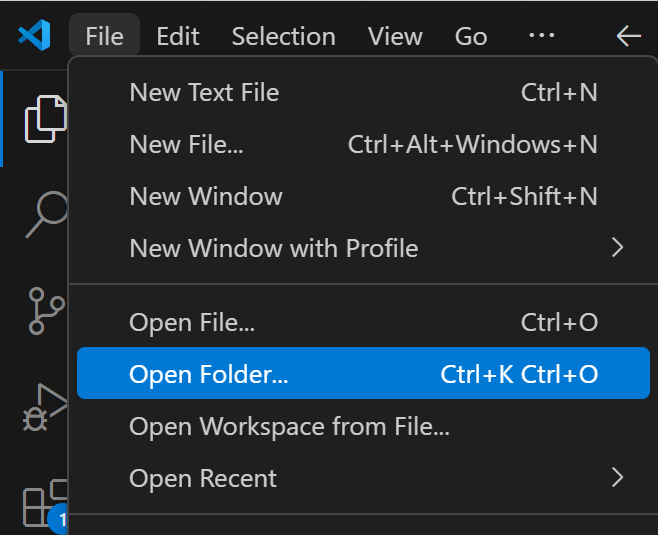
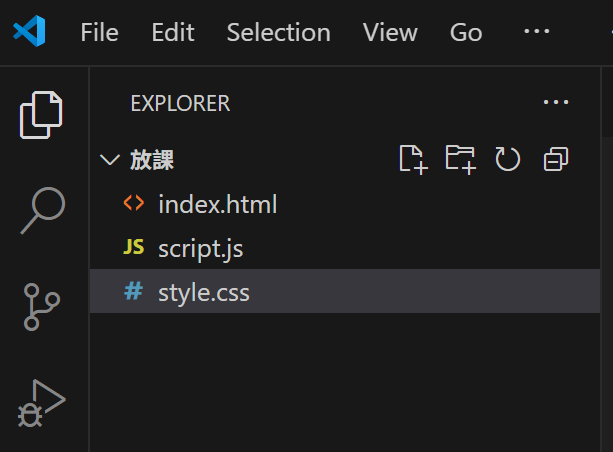
前端三件套
<head>
    <meta charset="UTF-8">
    <meta name="viewport" content="width=device-width, initial-scale=1.0">
    <title>Document</title>
    <link rel="stylesheet" href="style.css">
</head>
<body>
<script src="script.js"></script>
</body>連結到CSS檔
連結到JS檔
HTML起手式 : ! + Tab
HTML
html-簡介
Hyper Text Markup Language 超文本標記語言
由很多標籤組成的網頁架構
<!DOCTYPE html>
<html lang="en">
<head>
    <meta charset="UTF-8">
    <meta name="viewport" content="width=device-width, initial-scale=1.0">
    <title>test</title>
    <link rel="stylesheet" href="style.css">
</head>
<body>
    <h1>Hello, World!</h1>
    <script src="script.js"></script>
</body>
</html>
html-語法
<p style="color: red;" id="p1">ABC</p>起始標籤
<p style="color: red;" id="p1">ABC</p>結束標籤
元素名稱
屬性1
屬性2
屬性值1
屬性值2
內容
元素
html-常見標籤
<!DOCTYPE html>
文件型別(Document Type) 的宣告, 固定寫在 HTML 檔的第一行,
目的為告訴瀏覽器此頁面為什麼版本的標籤語言, 以便瀏覽器解讀網頁.
<!DOCTYPE html>
<html lang="en">
<head>
    <meta charset="UTF-8">
    <meta name="viewport" content="width=device-width, initial-scale=1.0">
    <title>test</title>
    <link rel="stylesheet" href="style.css">
</head>
<body>
    <h1>Hello, World!</h1>
    <script src="script.js"></script>
</body>
</html>
只有一行 沒有結尾標籤
html-常見標籤
<html> </html>
整份 HTML 檔的最外層標籤, 裡面包含所有文件內容,
成對, 且只會有一對.
<!DOCTYPE html>
<html lang="en">
<head>
    <meta charset="UTF-8">
    <meta name="viewport" content="width=device-width, initial-scale=1.0">
    <title>test</title>
    <link rel="stylesheet" href="style.css">
</head>
<body>
    <h1>Hello, World!</h1>
    <script src="script.js"></script>
</body>
</html>
屬性lang表示頁面使用的語言
- <html lang="en"> 英文
- <html lang="zh-Hant"> 繁體中文
html-常見標籤
<head> </head>
網頁的設定資料, 主要是寫給機器運作與搜尋使用的,
裡面的內容不會直接顯示在網頁上.
<!DOCTYPE html>
<html lang="en">
<head>
    <meta charset="UTF-8">
    <meta name="viewport" content="width=device-width, initial-scale=1.0">
    <title>test</title>
    <link rel="stylesheet" href="style.css">
</head>
<body>
    <h1>Hello, World!</h1>
    <script src="script.js"></script>
</body>
</html>
常見元素
- <meta>
- <title>
- <link> ( CSS )
- <script>
html-常見標籤
<body> </body>
放網頁主要內容的地方, 所有會出現在網頁畫面上的內容都放在這裡.
包含標題、段落、圖片、超連結、清單、按鈕和區塊等.
<!DOCTYPE html>
<html lang="en">
<head>
    <meta charset="UTF-8">
    <meta name="viewport" content="width=device-width, initial-scale=1.0">
    <title>test</title>
    <link rel="stylesheet" href="style.css">
</head>
<body>
    <h1>Hello, World!</h1>
    <script src="script.js"></script>
</body>
</html>
html-常見標籤
<meta>
放在 <head> 中, 提供關於網頁的設定與資訊.
<!DOCTYPE html>
<html lang="en">
<head>
    <meta charset="UTF-8">
    <meta name="viewport" content="width=device-width, initial-scale=1.0">
    <title>test</title>
    <link rel="stylesheet" href="style.css">
</head>
<body>
    <h1>Hello, World!</h1>
    <script src="script.js"></script>
</body>
</html>
單標籤 沒有結尾標籤
<meta charset="UTF-8"> 告訴瀏覽器這份文件使用的是 UTF-8 編碼
<meta name="viewport" content="width=device-width,
initial-scale=1.0"> 設定視窗的長寬與裝置長寬一致
html-常見標籤
<title> </title>
設定網頁的標題 ( 瀏覽器上分頁的名稱 ),
放在 <head> 裡.
<!DOCTYPE html>
<html lang="en">
<head>
    <meta charset="UTF-8">
    <meta name="viewport" content="width=device-width, initial-scale=1.0">
    <title>test</title>
    <link rel="stylesheet" href="style.css">
</head>
<body>
    <h1>Hello, World!</h1>
    <script src="script.js"></script>
</body>
</html>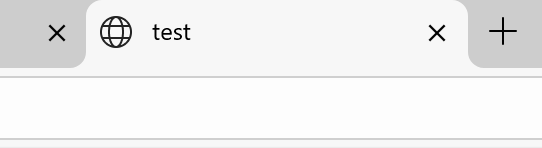
html-常見標籤
<style> </style>
在 HTML 裡直接寫 CSS, 設定 HTML 元素的外觀樣式,
裡面的內容等同於外連的 CSS 檔內容.
通常寫在 <head> 中.
<style>
    body {
      background-color: black;
    }

    h1 {
      color: white;
      text-align: center;
    }

    p {
      color: #333;
      font-size: 18px;
    }
</style>
html-常見標籤
<link>
連結外部資源, 最常見的用途是連接 CSS 檔.
<!DOCTYPE html>
<html lang="en">
<head>
    <meta charset="UTF-8">
    <meta name="viewport" content="width=device-width, initial-scale=1.0">
    <title>test</title>
    <link rel="stylesheet" href="style.css">
</head>
<body>
    <h1>Hello, World!</h1>
    <script src="script.js"></script>
</body>
</html>
rel 說明連結的資源種類 href 檔案的路徑
html-常見標籤
<p> </p>
代表段落 ( paragraph ),
瀏覽器會自動在每個 <p> 的前後加上一行空白 ( 換行效果 ).
<p>This is a paragraph.</p>
<p>This is a paragraph.</p>
<p>This is a paragraph.</p>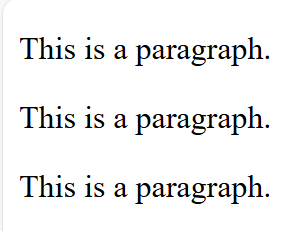
html-常見標籤
<h1> </h1>、<h2> </h2>、<h3> </h3>...
網頁的標題 ( heading ), 共有六級 ( h1 ~ h6 ), 數字越小, 文字越大.
<h1>This is heading 1</h1>
<h2>This is heading 2</h2>
<h3>This is heading 3</h3>
<h4>This is heading 4</h4>
<h5>This is heading 5</h5>
<h6>This is heading 6</h6>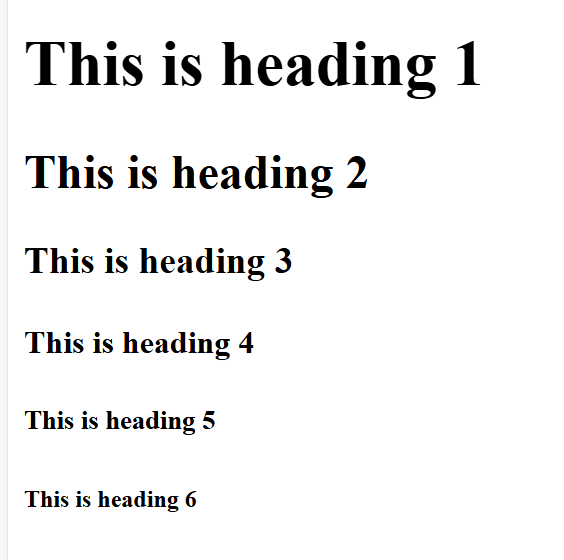
html-常見標籤
<b> </b>
將標籤內的文字改為粗體
<i> </i>
將標籤內的文字改為斜體

<a>楓資從不抽象</a>
<b>楓資從不抽象</b>
<i>楓資從不抽象</i>
html-常見標籤
<br>
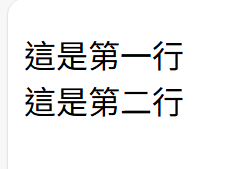
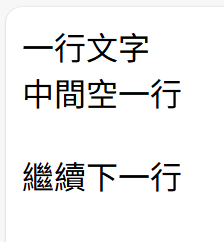
代表換行 ( break ), 用來在文字中強制換行.
<p>這是第一行<br>這是第二行</p>
空標籤 沒有內容也沒有結尾標籤
一行文字<br><br>中間空一行<br>繼續下一行
html-常見標籤
<a href="網址/檔名"> </a>
連接外部網址 (超連結)
<a href="https://www.google.com">前往 Google</a>

html-常見標籤
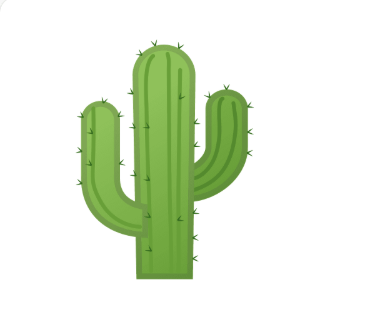
<img src="圖片連結/檔名"/>
在網頁中插入圖片
* 注意! 圖片需與其他檔案放在同一個資料夾裡面! *
<img src="cactus.png" width="50" height="50"/>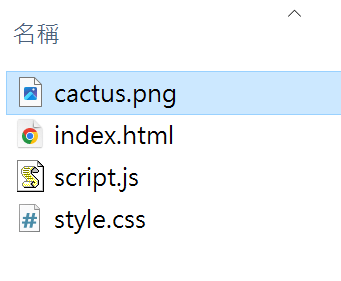
html-常見標籤
<div> </div>
代表區塊、區段 ( division ), 用來把一群元素包起來形成一個獨立區域.
可想像其為一個容器, 在進行 CSS 樣式處理或 JS 操控時,
可一次改變容器中的所有元素. 常與 class、id 一起使用.
<div class="box">
    <p>HTML的標籤怎麼那麼多QQ</p>
</div>

<style>
.box {
	color: blue;
}
</style>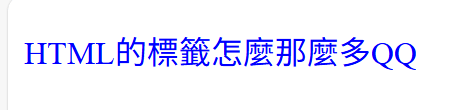
html-常見標籤
<button> </button>
在網頁上建立一個可點擊的按鈕,
可與文本元素一起使用 ( i斜體、b粗體、br換行等 ).
<button type="button" onclick="original()">哇哈哈哈哈哈</button>
<button type="button" onclick="italic()"><i>斜體哈哈哈哈</i></button>
<button type="button" onclick="bold()"><b>粗體哈哈哈哈</b></button>
type 設定按鈕的類型 onclick 設定按下按鈕觸發的函式

html-常見標籤
<script> </script>
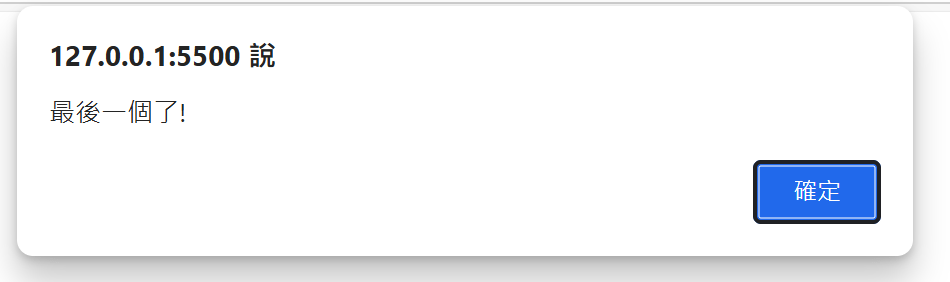
在 HTML 裡直接寫 JS, 或是連結 JS 檔, 讓網頁有互動功能.
<script>
  alert("最後一個了!");
</script>
<script src="script.js"></script>
通常放在<body>中的最後一行,
讓網頁內容先載好再執行程式.
src 指定外部檔案路徑
CSS
css-簡介
Cascading Style Sheets 階層式樣式表
由選擇器和宣告組成
body {
    background-color: white;
    font-family: "微軟正黑體";
}

h1 {
    color: blue;
    text-align: center;
}

p {
    color: black;
    font-size: 18px;
}
css-語法
h1 {
	color: blue;
}
選擇器
屬性
屬性值
宣告
規則
css-選擇器
不同的選擇器會對應到不同的東西
| 種類 | 語法 | 範例 |
|---|---|---|
| 元素選擇器 | 標籤名 | p { color: red; } |
| class選擇器 | .類別名 | .highlight { background: yellow; } |
| ID 選擇器 | #ID名 | #title { font-size: 24px } |
css-選擇器
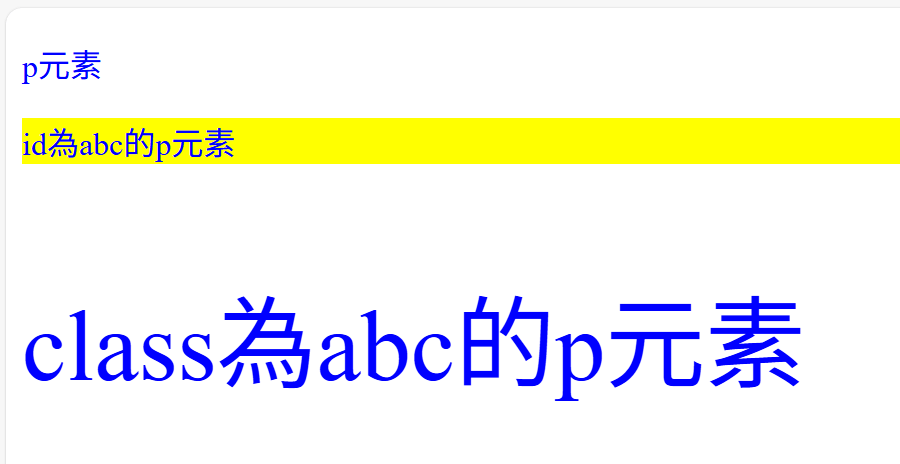
/* 所有p元素 */
p {
    color: blue;
}

/* id為abc的元素 */
#abc {
    background-color: yellow;
}

/* class為abc的元素 */
.abc {
    font-size: 50px;
}
<p>p元素</p>
<p id="abc">id為abc的p元素</p>
<p class="abc">class為abc的p元素</p>HTML
CSS
css-常見屬性
color
設定文字的顏色
顏色名稱 : red、green、blue
HEX 十六進位 : #ff0000、#00ff00、#0000ff
RGB : rgb(255, 0, 0)、rgb(0, 255, 0)、rgb(0, 0, 255)
<p style="color: red;">顏色名稱</p>
<p style="color: #00ff00;">HEX 十六進位</p>
<p style="color: rgb(0, 0, 255);">RGB</p>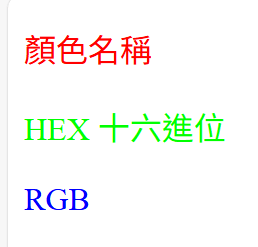
css-常見屬性
background-color
設定元素的背景顏色
設定方式與 color 相同
<p style="background-color: red;">顏色名稱</p>
<p style="background-color: #00ff00;">HEX 十六進位</p>
<p style="background-color: rgb(0, 0, 255);">RGB</p>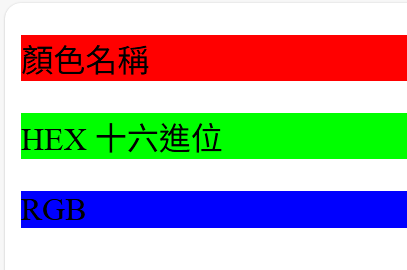
css-常見屬性
font-size
設定文字的大小
通常使用px ( 像素 ) 為單位
<p style="font-size: 10px;">10</p>
<p style="font-size: 20px;">20</p>
<p style="font-size: 30px;">30</p>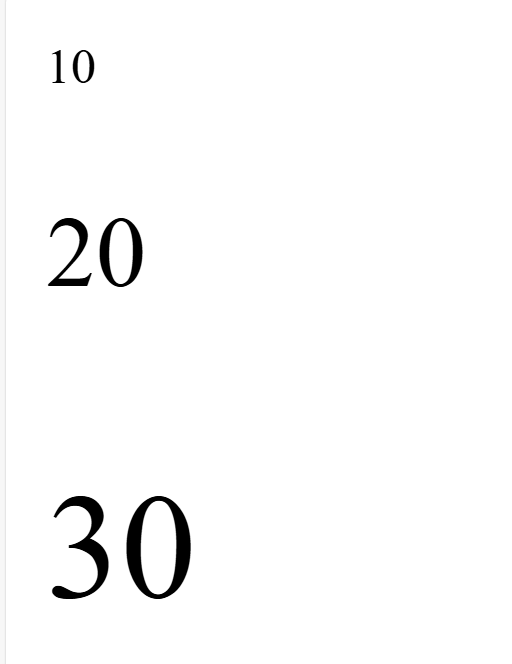
css-常見屬性
text-align
設定文字在容器中的水平對齊方式
left : 靠左對齊(預設)
right : 靠右對齊
center : 置中對齊
justify : 兩端對齊(多行時使用)
<p style="text-align: left;">文字靠左</p>
<p style="text-align: center;">文字置中</p>
<p style="text-align: right;">文字靠右</p>

css-常見屬性
width
設定元素的橫向大小 (寬度)
<div style="width: 10px;"></div>
<div style="width: 30px;"></div>
<div style="width: 50px;"></div>
div {
height: 50px;
background-color: green;
display: inline-block;
}HTML
CSS

css-常見屬性
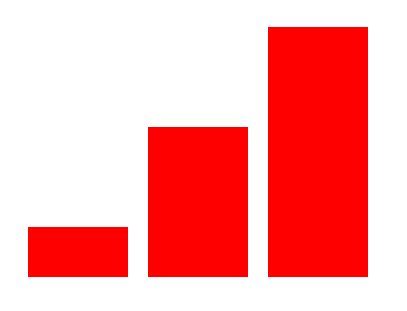
height
設定元素的縱向大小 (高度)
<div style="height: 10px;"></div>
<div style="height: 30px;"></div>
<div style="height: 50px;"></div>
div {
width: 20px;
background-color: red;
display: inline-block;
}HTML
CSS
css-常見屬性
border
設定元素的邊框 (粗細、樣式和顏色等)
選擇器 {
  border: 粗細 樣式 顏色;
}
邊框粗細 : 以 px 為單位
solid : 實線
dashed : 虛線
dotted : 點線
double : 雙線
none : 無邊框
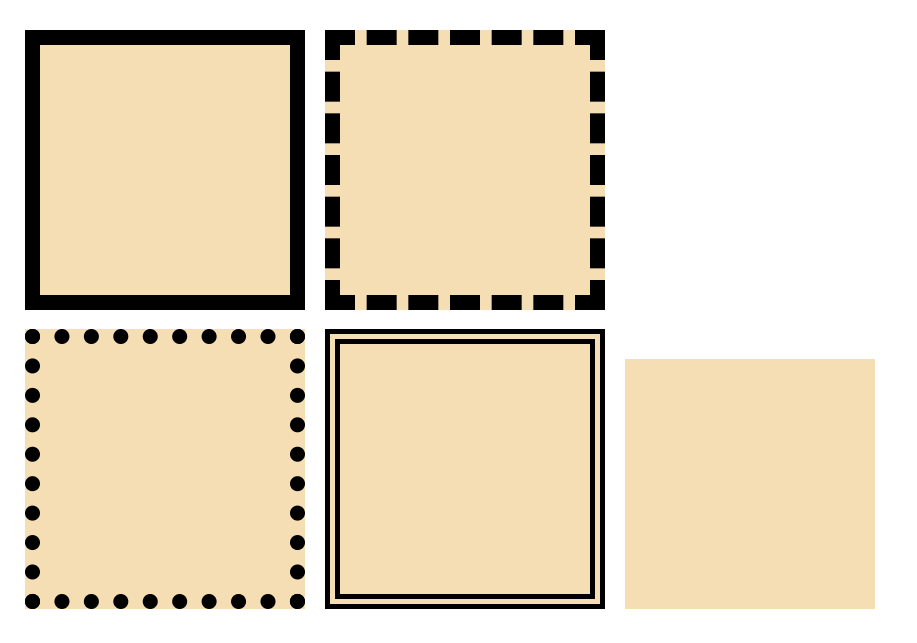
邊框粗細 : red、#ff000、rgb(255, 0, 0)
div {
    border-top: 2px solid red;
    border-right: 2px dashed blue;
    border-bottom: 2px dotted green;
    border-left: 2px double purple;
}
css-常見屬性
border
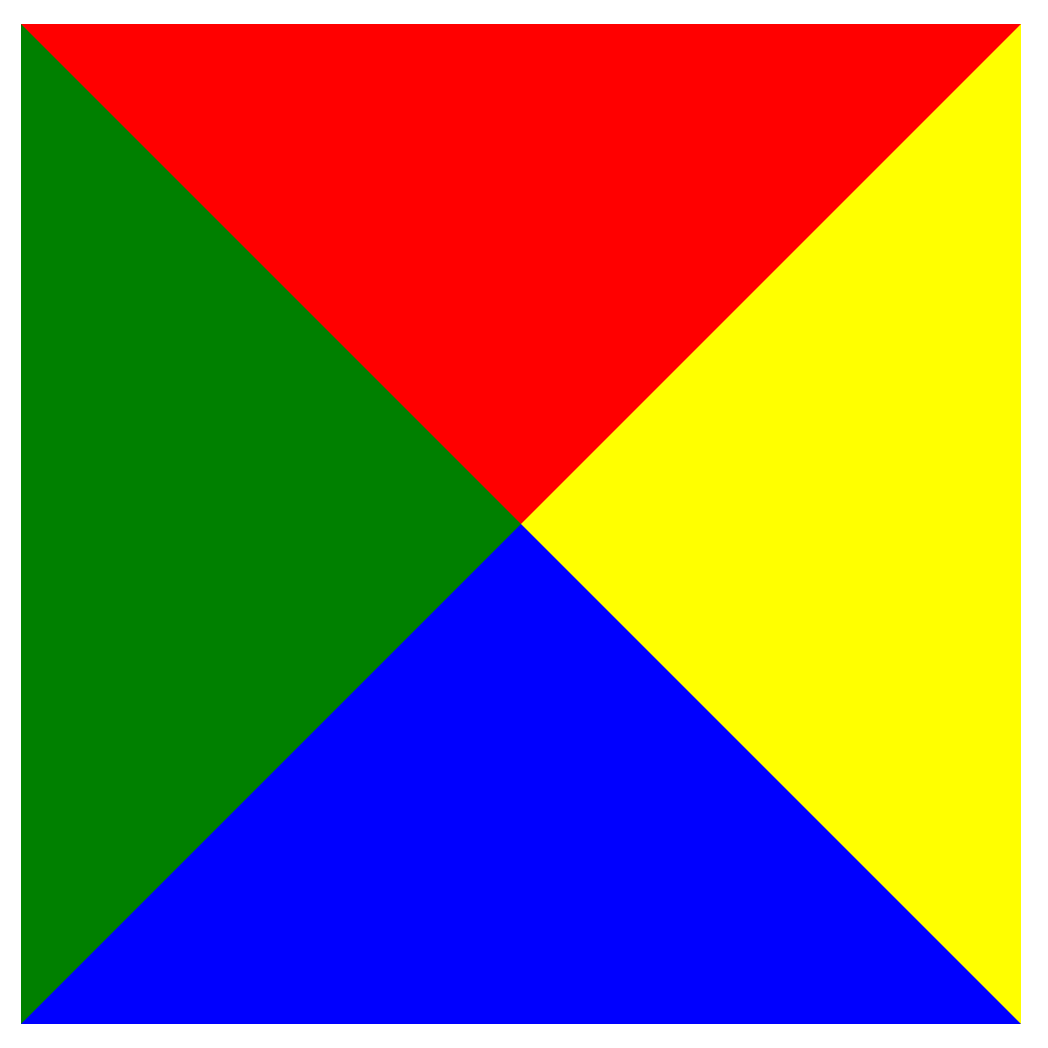
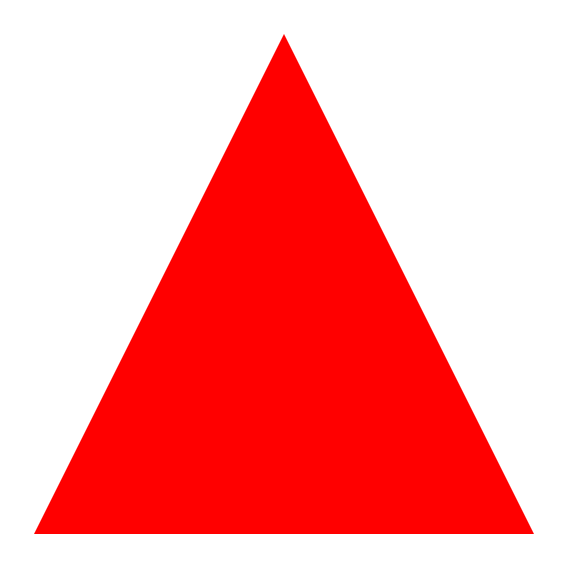
藉由邊框的夾角畫三角形
div {
    width: 0px;
    border-style: solid;
    border-width: 100px;
    border-color: red yellow blue green;
}
div {
width: 0px;
border-style: solid;
border-color: red transparent;
border-width: 0px 50px 100px;
}
css-常見屬性
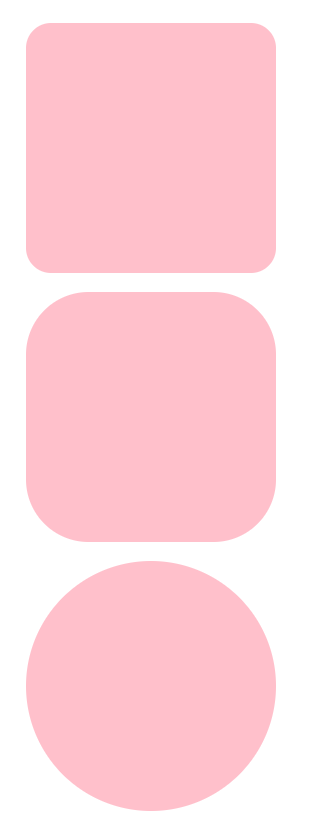
border-radius
用來設定block元素四個角落的半徑
<div style="height: 10px;"></div>
<div style="height: 30px;"></div>
<div style="height: 50px;"></div>
HTML
div {
    width: 50px;
    height: 50px;
    background-color: pink;
    display: inline-block;
}
CSS
css-常見屬性
margin
元素外面與其他元素之間的空白
margin-top : 上
margin-right : 右
margin-bottom : 下
margin-left : 左
margin: 10px 20px 30px 40px;
有四個值時,
代表依照top、right、bottom、left的順序分別為10px、20px、30px、40px.
margin: 10px;
只有一個值時, 代表四個都設為10px.
margin: 10px 20px;
有兩個值時,
代表top和bottom設為10px、right和left設為20px.
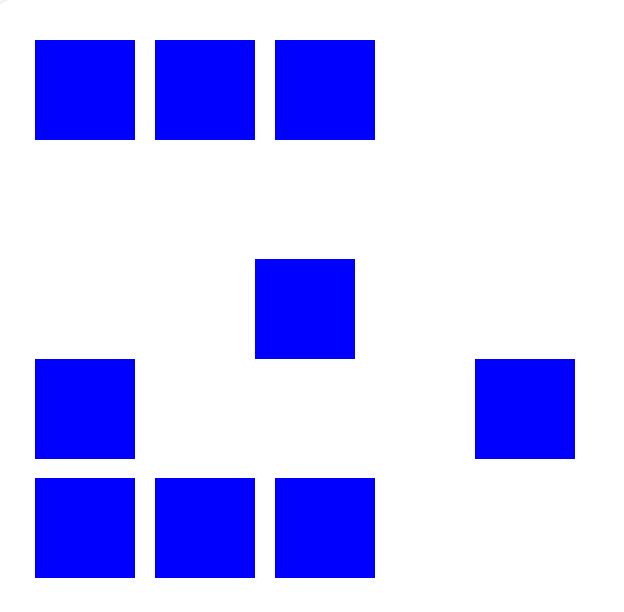
css-常見屬性
margin
<div></div>
<div></div>
<div></div><br>
<div></div>
<div id="center"></div>
<div></div><br>
<div></div>
<div></div>
<div></div>
HTML
div {
    width: 20px;
    height: 20px;
    background-color: blue;
    display: inline-block;
}
CSS
#center {
    margin: 20px;
}
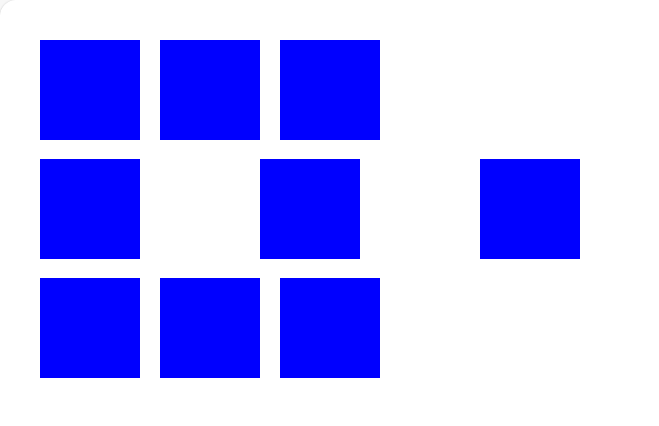
#center {
    margin: 0px 20px;
}
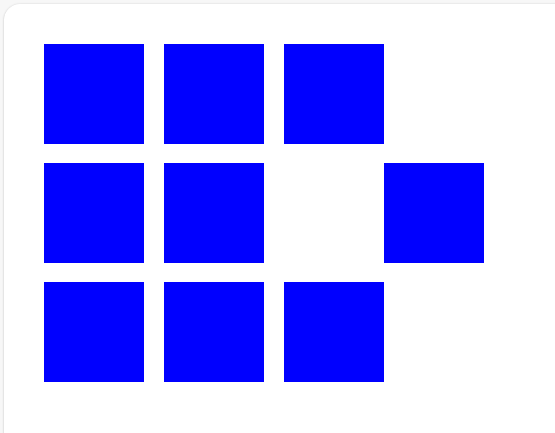
#center {
    margin: 0px 20px 0px 0px;
}
css-常見屬性
padding
元素內容與邊框之間的距離
padding-top : 上
padding-right : 右
padding-bottom : 下
padding-left : 左
padding: 10px 20px 30px 40px;
有四個值時,
代表依照top、right、bottom、left的順序分別為10px、20px、30px、40px.
padding: 10px;
只有一個值時, 代表四個都設為10px.
padding: 10px 20px;
有兩個值時,
代表top和bottom設為10px、right和left設為20px.
css-常見屬性
padding
<p>1 2 3 4 5 6 7 8 9 10</p>HTML
p {
    border: solid 2px black;
    width: 100px;
    font-size: 1.5em;
    padding:   ;
    box-sizing: border-box;
}
CSS
padding: 20px;padding: 0px 20px;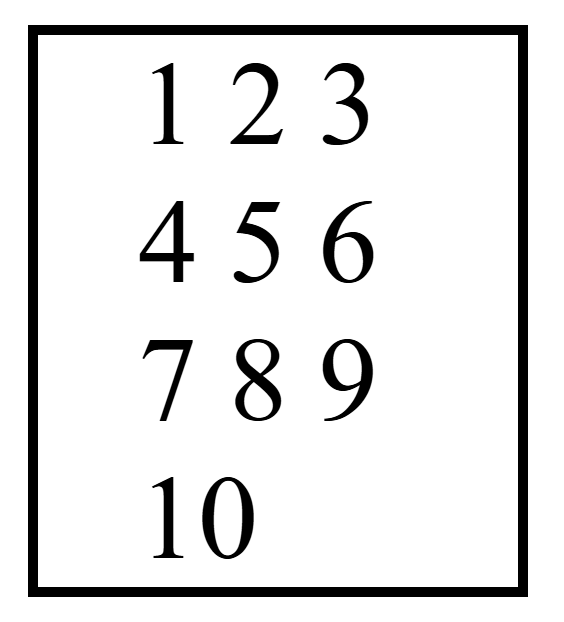
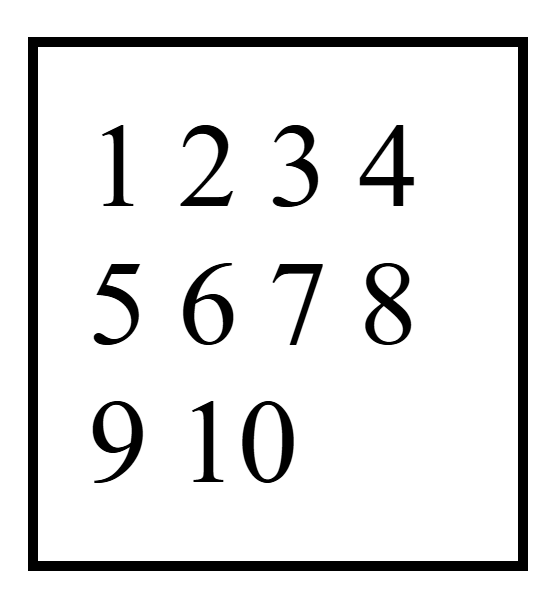
padding: 0px 20px 20px 0px;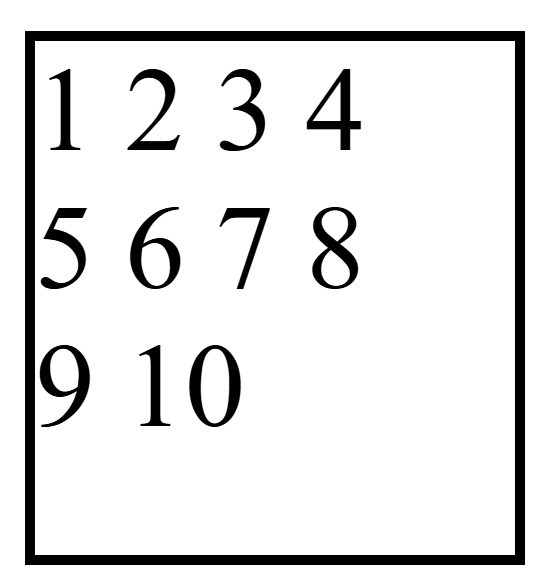
thanks !
網頁前端2
By ariel tai